Running a WooCommerce store is not only about design and products — website performance also plays a major role in customer experience, SEO rankings, and conversions. A slow WooCommerce website can increase bounce rates, reduce sales, and create frustration during checkout.
In this article, we’ll explore the best performance suggestions to optimize your WordPress WooCommerce website for speed, stability, and better user experience.
Why WooCommerce Performance Matters
A fast-loading eCommerce website helps:
- Improve customer experience
- Increase conversion rates
- Reduce cart abandonment
- Improve SEO rankings
- Handle more concurrent users
- Speed up checkout process
Even a delay of 1–2 seconds can negatively affect sales and engagement.
Use High-Performance Hosting
Your hosting provider is the foundation of your website speed. Shared hosting may struggle when your WooCommerce store grows.
Recommended Hosting Features
- LiteSpeed or NGINX server
- SSD or NVMe storage
- PHP 8.2+
- Server-side caching
- Dedicated WooCommerce optimization
- CDN integration support
Managed WordPress hosting is often a better option for growing stores.
Optimize Product Images
Large images are one of the biggest reasons for slow WooCommerce websites.
Best Practices
- Compress images before upload
- Use WebP image format
- Avoid oversized dimensions
- Enable lazy loading
- Use optimized thumbnails
Image optimization can dramatically reduce page load times without reducing quality.
Use a Lightweight Theme
Heavy themes with excessive animations and scripts can slow down your website.
Choose Themes That Are:
- Lightweight
- WooCommerce optimized
- Mobile responsive
- Regularly updated
- Compatible with performance plugins
Minimal themes generally perform better than feature-heavy multipurpose themes.
Minimize Plugin Usage
Too many plugins can increase database queries, script loading, and conflicts.
Performance Tips
- Remove unused plugins
- Avoid duplicate functionality plugins
- Use quality plugins from trusted developers
- Regularly update plugins
- Monitor plugin impact on speed
Every plugin should provide real value to your store.
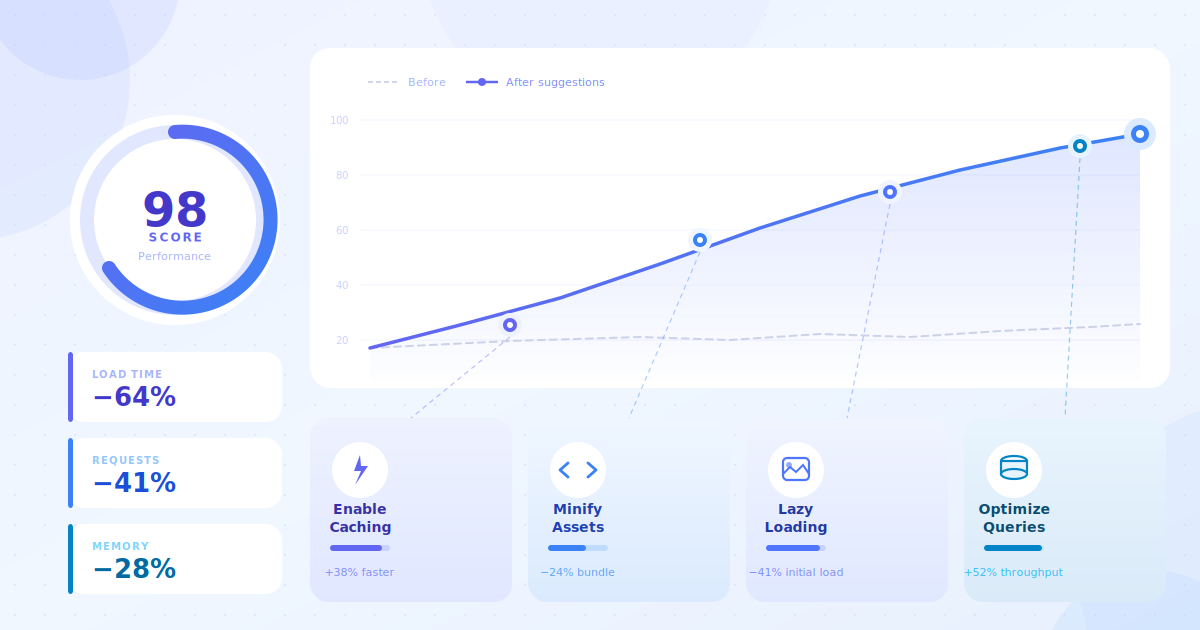
Enable Caching
Caching reduces server processing time and improves page delivery speed.
Recommended Cache Types
- Page caching
- Browser caching
- Object caching
- Database caching
Caching plugins can significantly improve WooCommerce performance when configured correctly.
Optimize WooCommerce Database
WooCommerce stores generate a large amount of database data over time.
Database Optimization Includes
- Removing post revisions
- Cleaning expired transients
- Deleting spam comments
- Optimizing database tables
- Removing orphaned metadata
Regular database maintenance keeps your website running smoothly.
Frequently asked questions
Q: Why is my WooCommerce website slow?
A: WooCommerce websites can become slow due to poor hosting, large images, excessive plugins, outdated PHP versions, and unoptimized databases.
Q: Which caching plugin is best for WooCommerce?
A: Popular caching plugins for WooCommerce include LiteSpeed Cache, WP Rocket, and W3 Total Cache. The best choice depends on your hosting environment and store requirements.
Q: Does image optimization improve WooCommerce speed?
A: Yes. Compressing and optimizing product images can significantly reduce page load time and improve overall website performance.
Q: How many plugins are too many in WordPress?
A: There is no fixed number, but using too many poorly optimized plugins can negatively affect website speed and stability. Quality matters more than quantity.
Q: Is a CDN necessary for WooCommerce websites?
A: A CDN is highly recommended, especially for stores serving visitors from multiple countries. It helps improve loading speed and reduce server load.